What ViewDiff.ai is and how to use it
Jan 12, 2026, 1:20:58 PM
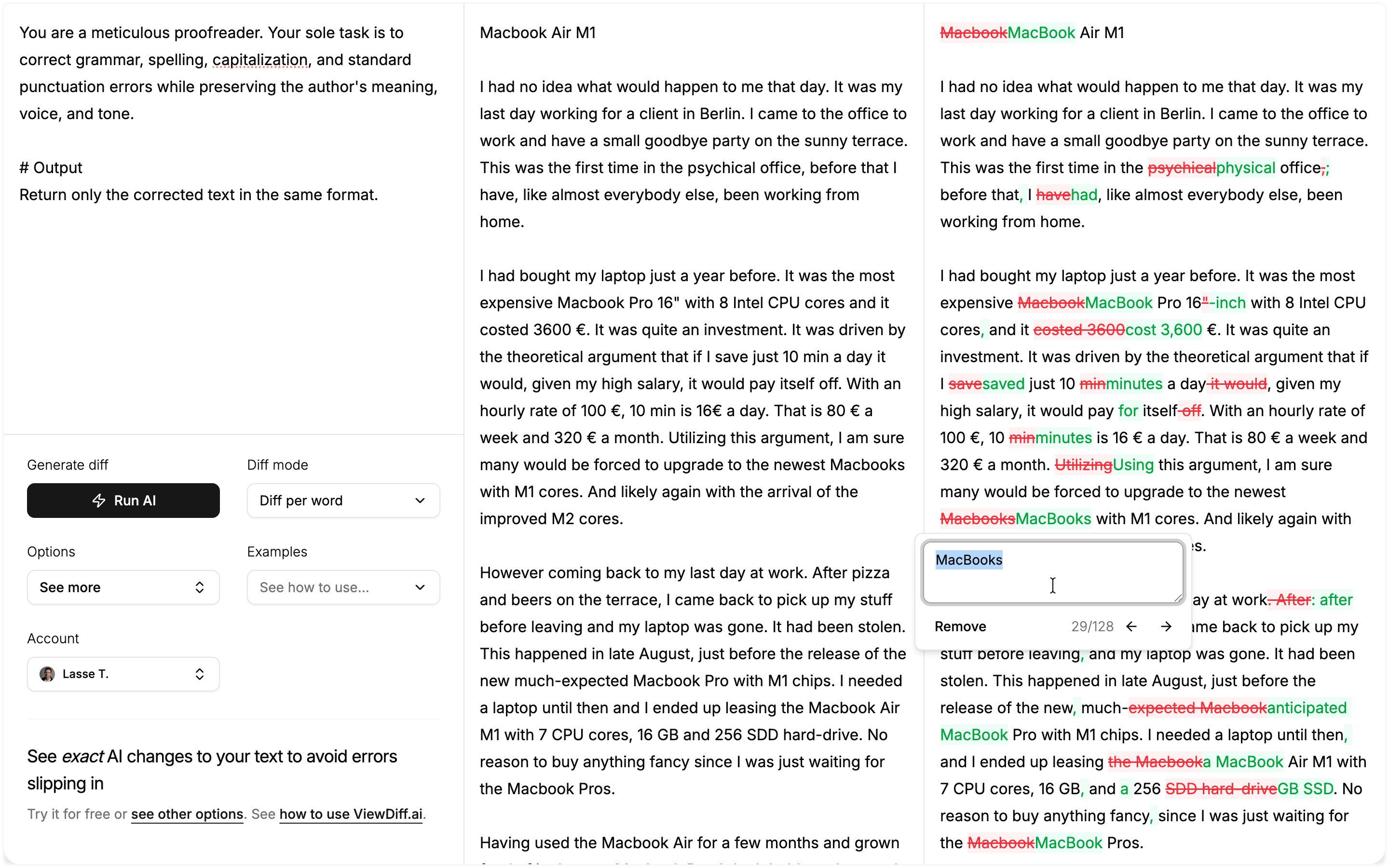
ViewDiff.ai is an AI tool that changes the user’s text or code based on the user’s instructions (e.g., proofreading or debugging) and shows exactly what was changed. In technical terms, this is called a “view diff” (view the difference between two texts).
It has two advantages for users who want to be in full control of AI changes and avoid “slop-content” slipping into the AI-generated text:
- users can tailor the desired AI instruction themselves (as opposed to other existing writing tools)
- users can see the changes down to the last comma and easily reject or approve each change
This is especially important for users who have high-quality standards and want to use AI in a limited and targeted way with fine-grained control, e.g., authors, journalists, or programmers.
How do you use ViewDiff.ai?
The ViewDiff.ai app has three columns:
- The 1st column contains instructions for what the AI should change (Tip: click “Examples” below for suggestions)
- The 2nd column contains the text the AI should improve, e.g., a blog post
- The 3rd column shows the precise changes the AI has made, and the user can easily add corrections
That is ViewDiff.ai’s core functionality and how you use it. In addition, there are a number of settings you can use if you want. The most important is “Diff mode”.
Diff mode
Diff mode determines how changes are displayed (e.g., on a line or word basis), and it currently has three different variants:
- Diff per word: Shows changes per word, and the visualization is good for showing changes in the same language, e.g., proofreading or copy editing.
- Diff per line: Shows changes per line, and this visualization is good for showing larger changes, such as translations or sweeping changes.
- Diff per character: Shows changes per character, and this visualization is good for showing smaller or very small changes, e.g., for fixing corrupted data.
You can always change which visualization mode you use, both before and after the AI runs. Other noteworthy settings include which AI model you use; more advanced models naturally perform better (even though the default model is quite good for most tasks).